Quick Background
I am currently re-vamping my home office and gaming room set-up and purchased a G613 wireless keyboard from Logitech. One of the major advantages to the keyboard is I can keep the USB dongle with Lightspeed in my gaming PC and quickly switch to Bluetooth mode to connect to my laptop for work when I’m doing a lot of typing and need a full keyboard.
On my gaming PC I have two displays – the primary is on the right and secondary is extended to the left. I typically put my work laptop to the right of my main monitor. The primary monitor has a DisplayPort cable going into the gaming PC, and an HDMI cable running below the desk that I plug into my work laptop whenever I want a larger monitor to work (most of the time). However since I am just changing the input mode, my preference is to switch the “primary” display for my gaming PC over to the secondary monitor so that I can still use the full functionality of that single screen, while using dual monitors for work. Usually I would go into the Windows display settings and manually change it, but wondered if I could do this with a single button press on my G613. Turns out I can!
How it Works
It is actually super simple. Pressing the Windows button and P simultaneously (“Win+P”) brings up quick display changing settings in Windows 10. From there you can click what option you want. Alternatively, pressing “Win+P” again will cycle through the options on the screen. This enables the super simple solution of setting up two Macros in G Hub that press “Win+P” the required number of times:
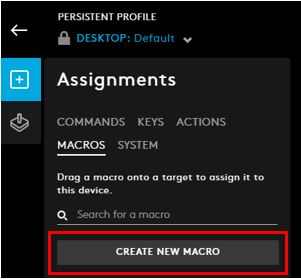
1.) Go to your keyboard in G Hub. Under the Macros tab, click “Create New Macro”.
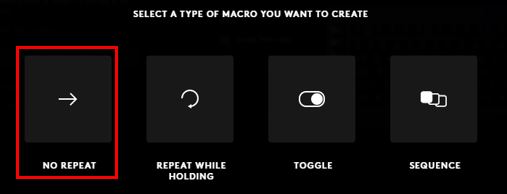
2.) Name your macro (whatever you want) and select “No Repeat”
3.) Press “Start Now” –> “Record Keystrokes”
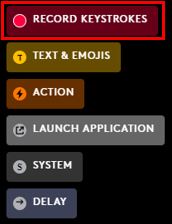
4.) Press “Win+P” as many times as you need to get the screen display setting you want to achieve. Press “Stop Recording” once you are finished.


5.) On the “Assignments” tab, select the “Macro” tab. Then, select the G Key you want to assign the macro to, and finally select the macro you’ve just made.
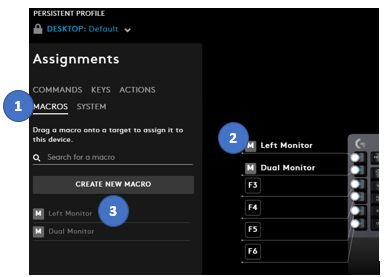
6.) That’s it! Now, when you press your G-Key, it will automatically press the “Win+P” button as many times as you’ve written to the macro. For my set-up I did two separate macros to easily switch back and forth between my secondary display only and my primary dual monitor set-up.
I realize this is probably a pretty unique situation, but thought this little write-up might help someone. Leave a comment if it did!